



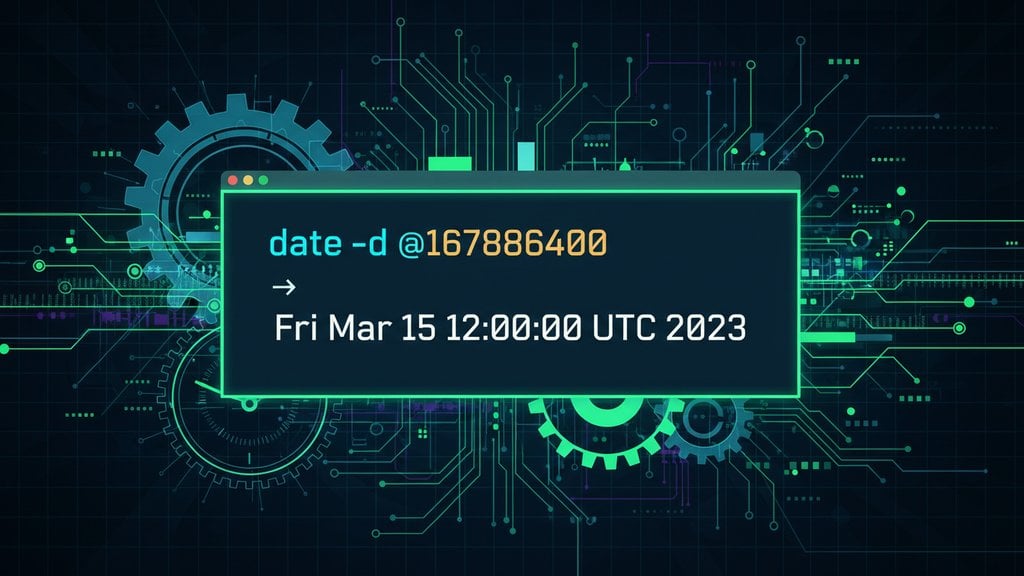
Converting a Linux timestamp to a date is something you'll do constantly as a developer or sysadmin, and Linux gives you several clean ways to do it. The fastest method is the
date
command with the
-d
flag, but
awk
and Bash scripts let you handle bulk conversions or embed the logic in automation. Here's exactly how each approach works, with copy-paste examples you can run right now.
Content Table
- Unix Timestamps in Linux: What You Need to Know Before Converting?
- Convert a Timestamp with the date Command
- Convert Timestamps in Files Using awk
- Bash Scripts for Timestamp Conversion
- Handling Millisecond Timestamps
- Getting the Current Unix Timestamp in Linux
- Timezone Handling in Conversions
- Quick Reference Table
Unix Timestamps in Linux: What You Need to Know Before Converting
On Linux systems, every timestamp you encounter in logs, file metadata, and shell output is a Unix timestamp — a plain integer counting seconds from January 1, 1970 UTC. Before running any conversion command, there is one thing to confirm: whether your timestamp is in
seconds (10 digits) or milliseconds (13 digits).
Linux's date command expects seconds only, so working with the wrong unit is the most common source of incorrect output.
If you need a full breakdown of how Unix timestamps work at the concept level, the Epoch Time: The Foundation of Unix Timestamps article covers it thoroughly.
date command expects seconds, so you'll need to strip the last three digits if you're working with milliseconds.
Convert a Timestamp with the date Command
The date command is the quickest tool for a one-off conversion. On Linux (GNU coreutils), the
-d flag accepts a string like @1700000000, where the
@ prefix tells date you're passing a Unix timestamp.
date -d @1700000000Output:
Tue Nov 14 22:13:20 UTC 2023
You can control the output format using
date +FORMAT syntax. The format string follows
GNU coreutils date format specifiers. Common ones:
-
%Y-%m-%dgives you2023-11-14 -
%H:%M:%Sgives you22:13:20 -
%A, %B %d %Ygives youTuesday, November 14 2023 -
%FT%T%zgives you ISO 8601 format:2023-11-14T22:13:20+0000
Combining them:
date -d @1700000000 "+%Y-%m-%d %H:%M:%S"Output:
2023-11-14 22:13:20
date command on macOS uses BSD syntax, not GNU. The equivalent there is
date -r 1700000000. The -d @timestamp syntax only works on Linux with GNU coreutils installed.
Convert Timestamps in Files Using awk
When you have a log file or CSV with a column of Unix timestamps,
awk
is the right tool. It lets you process every line and convert timestamps on the fly without a separate script file.
Say you have a log file where the first field is a Unix timestamp:
1700000000 user=alice action=login
1700003600 user=bob action=logout
This
awk
one-liner converts the first field to a readable date and prints the rest of the line:
awk '{cmd="date -d @"$1" \"+%Y-%m-%d %H:%M:%S\""; cmd | getline d; close(cmd); $1=d; print}' logfile.txtOutput:
2023-11-14 22:13:20 user=alice action=login
2023-11-14 23:13:20 user=bob action=logout
If you're working with a CSV where the timestamp is in a specific column (say column 3), adjust the field reference:
awk -F',' '{cmd="date -d @"$3" \"+%Y-%m-%d %H:%M:%S\""; cmd | getline d; close(cmd); $3=d; print}' OFS=',' data.csv
awk
also has a built-in
strftime
function in gawk (GNU awk), which avoids spawning a subprocess for every line. This is significantly faster on large files:
gawk '{print strftime("%Y-%m-%d %H:%M:%S", $1), $2, $3}' logfile.txt
strftime
is a gawk extension. If your system uses mawk or nawk (common on older Debian/Ubuntu setups), it may not be available. Run
awk --version
to check which implementation you have.
Bash Scripts for Timestamp Conversion
For reusable logic, a Bash function or script beats typing the same command repeatedly. Here's a simple function you can add to your
~/.bashrc
or
~/.bash_profile:
ts2date() {
  date -d "@$1" "+%Y-%m-%d %H:%M:%S %Z"
}
After sourcing your profile (
source ~/.bashrc
), you can call it like this:
ts2date 1700000000
# Output: 2023-11-14 22:13:20 UTC
For a standalone script that processes a whole file and writes the output to a new file:
#!/bin/bash
# convert_timestamps.sh
# Usage: ./convert_timestamps.sh input.txt output.txt

INPUT="$1"
OUTPUT="$2"

while IFS= read -r line; do
  timestamp=$(echo "$line" | awk '{print $1}')
  rest=$(echo "$line" | cut -d' ' -f2-)
  readable=$(date -d "@$timestamp" "+%Y-%m-%d %H:%M:%S")
  echo "$readable $rest"
done < "$INPUT" > "$OUTPUT"

echo "Done. Results written to $OUTPUT"
Make it executable and run it:
chmod +x convert_timestamps.sh
./convert_timestamps.sh logfile.txt converted.txt
For more patterns around timestamp handling in scripts and applications, the How to Convert Unix Timestamp to Date: Complete Developer Guide covers edge cases and common mistakes worth knowing.
Handling Millisecond Timestamps
JavaScript, Java, and many APIs return 13-digit millisecond timestamps (like
1700000000000
). Linux's
date
command only understands seconds, so you need to divide by 1000 first.
Using Bash arithmetic:
MS_TIMESTAMP=1700000000000
SEC_TIMESTAMP=$((MS_TIMESTAMP / 1000))
date -d "@$SEC_TIMESTAMP" "+%Y-%m-%d %H:%M:%S"
Or as a one-liner:
date -d "@$((1700000000000 / 1000))" "+%Y-%m-%d %H:%M:%S"In gawk, you can detect and handle both automatically:
gawk '{
  ts = $1
  if (length(ts) == 13) ts = int(ts / 1000)
  print strftime("%Y-%m-%d %H:%M:%S", ts), $2, $3
}' logfile.txt
If you're unsure whether a specific timestamp is in seconds or milliseconds, the Seconds vs Milliseconds vs Microseconds: Which Unix Timestamp Should You Use? guide explains the differences and how to identify them reliably.
Getting the Current Unix Timestamp in Linux
The
date +%s
command prints the current Unix timestamp in seconds. This is the standard way to capture "right now" as an epoch value in scripts.
date +%s
# Example output: 1700000000
For milliseconds, multiply by 1000 using
%3N
(nanoseconds truncated to milliseconds):
date +%s%3N
# Example output: 1700000000000
You can also store the current timestamp in a variable for use in scripts:
NOW=$(date +%s)
echo "Script started at: $(date -d @$NOW "+%Y-%m-%d %H:%M:%S")"
Timezone Handling in Conversions
By default,
date
uses your system's local timezone (set in
/etc/localtime
or via the
TZ
environment variable). To convert to a specific timezone without changing your system settings, prefix the command with a
TZ
assignment:
# Convert to New York time
TZ="America/New_York" date -d @1700000000 "+%Y-%m-%d %H:%M:%S %Z"
# Output: 2023-11-14 17:13:20 EST

# Convert to Tokyo time
TZ="Asia/Tokyo" date -d @1700000000 "+%Y-%m-%d %H:%M:%S %Z"
# Output: 2023-11-15 07:13:20 JST
Timezone names follow the
IANA Time Zone Database
format (like
America/Chicago
or
Europe/London
). You can list all available zones on your system with:
timedatectl list-timezones
In a Bash script that needs to handle multiple timezones, set and unset
TZ
explicitly to avoid side effects:
convert_with_tz() {
  local ts="$1"
  local tz="$2"
  TZ="$tz" date -d "@$ts" "+%Y-%m-%d %H:%M:%S %Z"
}

convert_with_tz 1700000000 "Europe/Berlin"
# Output: 2023-11-14 23:13:20 CET
For a thorough look at how UTC offsets and timezone conversions interact with Unix timestamps, the Unix Timestamp UTC Explained: Timezones, Offsets and Conversions article goes deep on the mechanics.
Quick Reference Table
| Task | Command | Notes |
|---|---|---|
| Convert timestamp to default format |
date -d @1700000000
|
Uses system locale and timezone |
| Convert with custom format |
date -d @1700000000 "+%Y-%m-%d %H:%M:%S"
|
ISO-style output |
| Convert with specific timezone |
TZ="America/New_York" date -d @1700000000
|
No system change needed |
| Get current timestamp |
date +%s
|
Returns seconds since epoch |
| Get current timestamp in milliseconds |
date +%s%3N
|
13-digit output |
| Convert millisecond timestamp |
date -d "@$((1700000000000 / 1000))"
|
Divide by 1000 first |
| Bulk convert with gawk |
gawk '{print strftime("%Y-%m-%d %H:%M:%S", $1)}' file
|
Fast, no subprocess per line |
Verify your Linux timestamp instantly
Paste any Unix timestamp into our free converter and get the human-readable date in seconds, milliseconds, ISO 8601, and more formats simultaneously. No commands needed, auto-detects your timezone, and handles both 10-digit and 13-digit timestamps.
Verify your Linux timestamp instantly →
The
-d @timestamp
syntax is specific to GNU coreutils, which ships on most Linux distributions. If you're on macOS, FreeBSD, or another BSD-based system, the
date
command uses BSD syntax instead. On macOS, use
date -r 1700000000
to achieve the same result. On Linux, run
date --version
to confirm you have GNU coreutils installed.
Use
date -d "2023-11-14 22:13:20" +%s
to convert a human-readable date string back to a Unix timestamp. The
+%s
format specifier outputs seconds since the epoch. You can also specify a timezone by prepending
TZ="America/New_York"
before the command to make sure the conversion uses the correct offset.
date +%s
returns the current Unix timestamp in seconds (10 digits).
date +%s%3N
appends the milliseconds portion, giving you a 13-digit timestamp. The
%3N
specifier outputs the first 3 digits of the nanoseconds field, which effectively gives you millisecond precision. Use the 13-digit version when interfacing with JavaScript, Java, or APIs that expect milliseconds.
Yes, significantly. Every call to
date
inside a loop or awk's
getline
spawns a new subprocess. On a file with 100,000 lines, that means 100,000 process forks, which can take minutes.
gawk strftime
runs entirely inside the single awk process, making it orders of magnitude faster for bulk conversions. Always prefer
gawk strftime
when processing large files.
Prefix the
date
command with a
TZ
variable assignment, like
TZ="Europe/London" date -d @1700000000
. This overrides the system timezone for that single command without changing global settings. Inside a script, wrap this in a function that accepts the timestamp and timezone as arguments so you can reuse it cleanly across multiple conversions without side effects.
Yes. Use the format string
"+%FT%T%z"
with the
date
command:
date -d @1700000000 "+%FT%T%z"
. This outputs something like
2023-11-14T22:13:20+0000
. For strict ISO 8601 with a colon in the offset (like
+00:00
), use
"+%FT%T%:z"
instead. The
%:z
specifier adds the colon separator that some parsers require.